Monday, January 11, 2016

Picking your compileSdkVersion, minSdkVersion, and targetSdkVersion

By Admin   Posted at  12:15 PM   targetSdkVersion No comments

Picking your compileSdkVersion, minSdkVersion, and targetSdkVersion

Depending on the time of the year, it might only be a few months after you release an app that a new version of Android is announced. What does that mean for your app though — is everything going to break?
You’ll be happy to know that forward compatibility is a strong focus of Android — existing apps built against prior SDKs should not break when the user updates to a new version of Android. This is wherecompileSdkVersion, minSdkVersion, and targetSdkVersion come in: they control what APIs are available, what the required API level is, and what compatiblity modes are applied, respectively.

compileSdkVersion

compileSdkVersion is your way to tell Gradle what version of the Android SDK to compile your app with. Using the new Android SDK is a requirement to use any of the new APIs added in that level.
It should be emphasized that changing your compileSdkVersion does not change runtime behavior. While new compiler warnings/errors may be present when changing your compileSdkVersion, your compileSdkVersion is not included in your APK: it is purely used at compile time. (You should really fix those warnings though — they were added for a reason!)
Therefore it is strongly recommended that you always compile with the latest SDK. You’ll get all the benefits of new compilation checks on existing code, avoid newly deprecated APIs, and be ready to use new APIs.
Note that if you use the Support Library, compiling with the latest SDK is arequirement for using the latest Support Library releases. For example, to use the 23.1.1 Support Library, you must have a compileSdkVersion of at least 23 (those first numbers need to match!). In general, a new version of the Support Library is released alongside a new platform version, providing compatibility shims to newly added APIs as well as new features.

minSdkVersion

If compileSdkVersion sets the newest APIs available to you, minSdkVersion is the lower bound for your app. The minSdkVersion is one of the signals the Google Play Store uses to determine which of a user’s devices an app can be installed on.
It also plays an important role during development: by default lint runs against your project, warning you when you use any APIs above your minSdkVersion, helping you avoid the runtime issue of attempting to call an API that doesn’t exist. Checking the system version at runtime is a common technique when using APIs only on newer platform versions.
Keep in mind that libraries you use, such as any of the Support Libraries orGoogle Play services, may have their own minSdkVersion — your app’s minSdkVersion must be at least as high as your dependencies’ minSdkVersion — if you have libraries that require 4, 7, and 9, your minSdkVersion must be at least 9. In rare cases where you want to continue to use a library with a higher minSdkVersion than your app (and deal with all edge cases/ensure the library is only used on newer platform versions), you can use the tools:overrideLibrary marker, but make sure to test thoroughly!
When deciding on a minSdkVersion, you should consider the stats on theDashboards, which give you a global look on all devices that visited the Google Play Store in the prior 7 days — that’s your potential audience when putting an app on Google Play. It is ultimately a business decision on whether supporting an additional 3% of devices is worth the development and testing time required to ensure the best experience.
Of course, if a new API is key to your entire app, then that makes the minSdkVersion discussion quite a bit easier. Just remember that even 0.7% of 1.4 billion devices is a lot of devices.

targetSdkVersion

The most interesting of the three, however, is targetSdkVersion.targetSdkVersion is the main way Android provides forward compatibility by not applying behavior changes unless the targetSdkVersion is updated. This allows you to use new APIs (as you did update your compileSdkVersion right?) prior to working through the behavior changes.
Much of the behavior changes that targetSdkVersion implies are documented directly in the VERSION_CODES, but all of the gory details are also listed on the each releases’ platform highlights, nicely linked in the API Levels table.
For example, the Android 6.0 changes talk through how targeting API 23 transitions your app to the runtime permissions model and the Android 4.4 behavior changes detail how targeting API 19 or higher changes how alarms set with set() and setRepeating() work.
With some of the behavior changes being very visible to users (thedeprecation of the menu button, runtime permissions, etc), updating to target the latest SDK should be a high priority for every app. That doesn’t mean you have to use every new feature introduced nor should you blindly update your targetSdkVersion without testing — please, please test before updating your targetSdkVersion! Your users will thank you.

Gradle and SDK versions

So setting the correct compileSdkVersion, minSdkVersion, and targetSdkVersion is important. As you might imagine in a world with Gradleand Android Studio, these values are integrated into the tools system through inclusion in your module’s build.gradle file (also available through the Project Structure option in Android Studio):
android {
  compileSdkVersion 23
  buildToolsVersion “23.0.1”

  defaultConfig {
    applicationId “com.example.checkyourtargetsdk"
    minSdkVersion 7
    targetSdkVersion 23
    versionCode 1
    versionName “1.0”
  }
}
The compileSdkVersion, being a compile time thing (who would have guessed!), is one of the android settings alongside with your build tools version. The other two are slightly differently in that they are declared at thebuild variant level — the defaultConfig is the base for all build variants and where’d you put default values for these, but you could imagine a more complicated system where specific versions of your app have a different minSdkVersion for example.
minSdkVersion and targetSdkVersion also differ from compileSdkVersion in that they are included in your final APK — if you were to look at the generated AndroidManifest.xml, you’d see a tag such as:
You’ll find if you manually put this in your manifest, it’ll be ignored when you build with Gradle (although other build systems might certainly rely on it being there).

Putting it all together

If you made it through the bolded notes, you’ll notice a relationship between the three values:
minSdkVersion <= targetSdkVersion <= compileSdkVersion
This intuitively makes sense — if compileSdkVersion is your ‘maximum’ and minSdkVersion is your ‘minimum’ then your maximum must be at least as high as your minimum and the target must be somewhere in between.
Ideally, the relationship would look more like this in the steady state:
minSdkVersion (lowest possible) <= 
    targetSdkVersion == compileSdkVersion (latest SDK)
You’ll hit the biggest audience with a low minSdkVersion and look and act the best by targeting and compiling with the latest SDK — a great way to #BuildBetterApps.
Author: Ian Lake

Tuesday, February 11, 2014

Developer Friendly Android Libraries

By Admin   Posted at  4:06 PM   Developer Friendly Android Libraries 4 comments

         Developer-friendly Android Libraries

Hi Guys,
Here is my list of favorite libraries, which I believe can save you some precious time while developing applications and ensure they are good-looking and user-friendly and they will provide the best smartphone application experience to end users.

Rajawali:


Rajawali is a 3D engine for Android based on OpenGL ES 2.0/3.0. It can be used for normal apps as well as live wallpapers.
This is one of my favorites. As you know I am Android Applications and Games Developer I really recommend this one. If you are thinking of developing live wallpapers or 3D games, this library might be very handy. One can easily export the 3D models from tools like Blender and render them on the devices using openGLES with this library. Adding animations like rotation, or scaling on user events is a cakewalk

Download it here: https://github.com/MasDennis/Rajawali

ActionBar Sherlock:

This one deserves to be at the top of the list. Action-bar was introduced in API-11 of the Android SDK and the support library by Google does not provide a proper backport. 

The library will automatically use the native action bar when appropriate or will automatically wrap a custom implementation around your layouts. This allows you to easily develop an application with an action bar for every version of Android from 2.x and up. It works seamlessly with newer views such as NavigationDrawer, SlidingPaneLayout, Fragments, etc.
Download it here: http://actionbarsherlock.com
How to use: http://actionbarsherlock.com/usage.html


RoboGuice 2:


RoboGuice 2 smoothes out some of the wrinkles in your Android development experience and makes things simple and fun. Do you always forget to check for null when you getIntent().getExtras()? RoboGuice 2 will help you. Think casting findViewById() to a TextView shouldn’t be necessary? RoboGuice 2 is on it.RoboGuice 2 takes the guesswork out of development. Inject your View, Resource, System Service, or any other object, and let RoboGuice 2 take care of the details.RoboGuice 2 slims down your application code. Less code means fewer opportunities for bugs. It also makes your code easier to follow -- no longer is your code littered with the mechanics of the Android platform, but now it can focus on the actual logic unique to your application.


Download it here: https://github.com/roboguice/roboguice

GSON:

Gson is a Java library that can be used to convert Java Objects into their JSON representation. It can also be used to convert a JSON string to an equivalent Java object. Gson can work with arbitrary Java objects including pre-existing objects that you do not have source-code of.This is a powerful and lightweight JSON parser, specifically for Android. If you have a Web-service returning JSON, use jsonschema2pojo.org  (or some other similar tool) to generate the POJOs, and with a single line of code, you can parse the JSON using this library. Use GSON along with ActiveAndroid and you can reduce the development time considerably.
Gson Goals:
  1. Provide simple toJson() and fromJson() methods to convert Java objects to JSON and vice-versa
  2. Allow pre-existing unmodifiable objects to be converted to and from JSON
  3. Extensive support of Java Generics
  4. Allow custom representations for objects
  5. Support arbitrarily complex objects (with deep inheritance hierarchies and extensive use of generic types)
Download it here: http://code.google.com/p/google-gson/


ActiveAndroid:

ActiveAndroid is an active record style ORM (object relational mapper). What does that mean exactly? Well, ActiveAndroid allows you to save and retrieve SQLite database records without ever writing a single SQL statement. Each database record is wrapped neatly into a class with methods like save() and delete(). This is a simple ORM solution for your applications. It is as easy as creating objects and saving them to the SQLite database. The setup of classes makes use of Java annotations. This saves a whole lot of time on configurations, and gives the developer more time to spend on the login than on the syntaxes. Once used, you will find it hard to live without it.
Download it here: https://github.com/pardom/ActiveAndroid


ViewPagerIndicator:

This is another cool library from the developer of Actionbar. It makes the viewpager more usable and enables easier navigation between fragments. Users have a clear idea of where they have navigated.
Features:

  1. New IconPageIndicator! Uses state-list images to represent pages.
  2. TabPageIndicator now supports icons via IconPagerAdapter interface.
  3. Support android:background attribute on Canvas-based views.
  4. Title indicator allows for drawing its line, underline, and/or triangle on top of the titles for placement underneath a ViewPager.
  5. Tab indicator now supports ICS-style dividers (see styled sample).
Download it here: http://viewpagerindicator.com/

Crouton:

Crouton is a class that can be used by Android developers that feel the need for an alternative to the Context insensitive Toast.
A Crouton will be displayed at the position the developer decides. Standard will be the top of an application window. You can line up multiple Croutons for display, that will be shown one after another. It is nicely implemented and highly customizable. It gives your application a notification system which is cleaner and more aesthetic than native toasts, and is rightly named croutons.
Download it here: https://github.com/keyboardsurfer/Crouton

Universal Image Loader:


Handling large bitmaps does gives nightmares to many Android developers. The Universal Image Uploader is a lightweight library which saves you the effort of handling bitmaps and provides great support for caching images. One can easily figure out how to decode the bitmaps in the app. Definitely a lifesaver of a library.
Features:
  1. Multithread image loading
  2. Possibility of wide tuning ImageLoader's configuration (thread executors, downloader, decoder, memory and disc cache, display image options, and others)
  3. Possibility of image caching in memory and/or on device's file system (or SD card)
  4. Possibility to "listen" loading process
  5. Possibility to customize every display image call with separated options
  6. Widget support
  7. Android 2.0+ support
Download it here: https://github.com/nostra13/Android-Universal-Image-Loader

AChartEngine:

This plots neat and elegant graphs in various styles. The javadocs might not be great, and it might not be all that easy to develop with only a few resources available and a large number of classes, but the output is definitely worth the effort.


Download it here: http://www.achartengine.org/

Robotium:

Robotium is an Android test automation framework that has full support for native and hybrid applications. Robotium makes it easy to write powerful and robust automatic black-box tests for Android applications. With the support of Robotium, test case developers can write function, system and acceptance test scenarios, spanning multiple Android activities. This is an automation testing framework for Android. Developers and testers can generate test cases and ensure that minor changes do not introduce new bugs. It might seem to be an overhead in the early stages of development but helps keep maintenance work easy.

Download it here: http://code.google.com/p/robotium/

ZXing:

ZXing ("zebra crossing") is an open-source, multi-format 1D/2D barcode image processing library implemented in Java, with ports to other languages.This quickly adds support for scanning bar codes in an Android application. Easy to configure and use. It has a high scanning efficiency.


Download it here: https://github.com/zxing/zxing OR http://code.google.com/p/zxing/

Tesseract:

Tesseract is probably the most accurate open source OCR engine available. Combined with the Leptonica Image Processing Library it can read a wide variety of image formats and convert them to text in over 60 languages. It was one of the top 3 engines in the 1995 UNLV Accuracy test. Between 1995 and 2006 it had little work done on it, but since then it has been improved extensively by Google.
Tesseract is a highly optimized optical character reader library available for Android. This is a cross-platform library and will require some basic knowledge of using NDK in an Android app.

Download it here: http://code.google.com/p/tesseract-ocr/
So these are my favorite developer friendly android libraries which are used in industry by many developers, I do use many of them and I listed them here by asking many of my friends who develops android apps & games that what they prefer to use.
If you think something is missing out of this list just point out I would love to include it as well.
    Hope this will help you guys a lot... Stay tuned for next article!


Monday, February 3, 2014

What is Android Architecture?

By Admin   Posted at  4:33 PM   Programming Languages 11 comments

                                  Android Architecture

Hi folks,
In our previous Android Tutorials, we have discussed quite a few concepts of Android development.
We have successfully set up android development environment in our last tutorial; I think that it is time to start with Android Architecture before starting basic android programing we must be aware of android architecture and layer's in android stack .
Androidfulcrum.blogspot.in >> Android Tutorials>> Android Architecture

So lets take a take a quick walk through of the Android Architecture.

Android Architecture: Layers in the Android Stack

The Android stack, as the guys over at Google call it, has a number of layers, and each layer groups together several programs. In this tutorial I’ll walk you through the various layers in Android stack and the functions they are responsible for.

Following are the different layers in the Android stack:
  1. Linux Kernel Layer
  2. Libraries Layer
  3. Application Framework Layer
  4. Applications layer


Kernel Layer:

The basic layer is the Linux kernel. The whole Android OS is built on top of the Linux 2.6 Kernel with some further architectural changes made by Google. It is this Linux that interacts with the hardware and contains all the essential hardware drivers.

Android Architecture: Linux Kernel

At the bottom of the Android stack is the Linux Kernel. It never really interacts with the users and developers, but is at the heart of the whole system. Its importance stems from the fact that it provides the following functions in the Android system:

  • Hardware Abstraction
  • Memory Management Programs
  • Security Settings
  • Power Management Software
  • Other Hardware Drivers (Drivers are programs that control hardware devices.)
  • Support for Shared Libraries
  • Network Stack
As the Android is built on a most popular and proven foundation, it made the porting of Android to variety of hardware, a relatively painless task.

Libraries Layer

Android architecture: Android libraries

The next layer in the Android architecture includes Android’s native libraries. Libraries carry a set of instructions to guide the device in handling different types of data. For instance, the playback and recording of various audio and video formats is guided by the Media Framework Library.
This layer enables the device to handle different types of data. These libraries are written in c or c++ language and are specific for a particular hardware.

Some of the important native libraries include the following:

Surface Manager: It is used for compositing window manager with off-screen buffering. Off-screen buffering means you cant directly draw into the screen, but your drawings go to the off-screen buffer. There it is combined with other drawings and form the final screen the user will see. This off screen buffer is the reason behind the transparency of windows.

Media framework: Media framework provides different media codecs allowing the recording and playback of different media formats.

SQLite: SQLite is the database engine used in android for data storage purposes.

WebKit: It is the browser engine used to display HTML content.

OpenGL & SGL: Used to render 2D or 3D graphics content to the screen.

Free Type: Font Rendering.

Open SSL

Android Runtime

Android Runtime consists of Dalvik Virtual machine and Core Java libraries.
Android architecture: Android runtime layer

Dalvik Virtual Machine
It is a type of JVM used in android devices to run apps and is optimized for low processing power and low memory environments. Unlike the JVM, the Dalvik Virtual Machine doesn’t run .class files, instead it runs .dex files. .dex files are built from .class file at the time of compilation and provides hifger efficiency in low resource environments. The Dalvik VM allows multiple instance of Virtual machine to be created simultaneously providing security, isolation, memory management and threading support. It is developed by Dan Bornstein of Google.
Core Java Libraries
These are different from Java SE and Java ME libraries. However these libraries provides most of the functionalities defined in the Java SE libraries.

Application Framework Layer

Applications framework layer
Android applications directly interact with these blocks of the Android architecture. These programs manage the basic functions of phone like resource management, voice call management etc.

Important blocks of Application framework are:

Activity Manager: Manages the activity life cycle of applications.

Content Providers: Manage the data sharing between applications.

Telephony Manager: Manages all voice calls. We use telephony manager if we want to access voice calls in our application.

Location Manager: Location management, using GPS or cell tower.

Resource Manager: Manage the various types of resources we use in our Application.

Application Layer

Applications layer: Android architecture
The applications is the topmost layer of the Android stack. An average user of the Android device would mostly interact with this layer (for basic functions, such as making phone calls, accessing the Web browser etc.) and this is where our applications are gonna fit. Several standard applications comes pre-installed with every device, such as:
  • SMS client app
  • Dialer
  • Web browser
  • Contact manager
  • Games etc.
As a developer we are able to write an app which replace any existing system app. That is, you are not limited in accessing any particular feature. You are practically limitless and can whatever you want to do with the android (as long as the users of your app permits it). Thus Android is opening endless opportunities to the developer.
I hope you are clear with the basic Android architecture now! So, in next tutorial we will see what are the android app components. So, Stay tuned for more android development tutorials.

This tutorial has been written with an aim to teach you and explore a little bit about what is android architecture. #Some of Stats/Info mentioned in this post are taken from Wikipedia. They are subjected to changes as android technology is growing very fast.

How to Set up an Android Development Environment

By Admin   Posted at  11:42 AM   Programming Languages 7 comments
How to Set up an Android Development Environment


Hello Guys,
Welcome back to my second tutorial on android application development series as promised in last tutorial, we will take a look at Ho to set up an android development environment.

Android is based on the Java development language and any beginner-level Java developer can jump right in and start developing applications.

The purpose of this guide is to outline in detail the steps necessary to set up the initial development environment for creating Android applications. The guide will address the installation of the Android Software Development Kit (SDK) and the initial set-up necessary for allowing Android OS emulation.

Most preferred operating systems which are used for development:
  • Microsoft Windows XP or later version.
  • Mac OS X 10.5.8 or later version with Intel chip.
  • Linux including GNU C Library 2.7 or later.
Second thing is that all the required tools to develop Android applications are available at free of cost and can be downloaded from the Web. Following is the list of software's you will need before you start your Android application programming.
  • Java JDK5 or JDK6
  • Android SDK
  • Eclipse IDE for Java Developers (optional)
  • Android Development Tools (ADT) Eclipse Plugin (optional)
So let us have a look how to proceed to set required environment.

Steps:

1. Download an IDE:

For the purpose of this example, will be using Eclipse. You can download the latest version of the software here: http://www.eclipse.org/downloads/packages/release/indigo/r.
You must choose the version that corresponds to your
OS of choice. Install Eclipse. Make sure to take note of the installation directory and workspace for later reference.

2. Download and install the Java Runtime Environment (JRE).

You can find the download file here: http://www.oracle.com/technetwork/java/javase/downloads/jre-6u25-download-346243.html.

3. Install the Android SDK:

  • The SDK starter package includes the Android SDK and AVD Manager. This is a tool that we will now use to download some required SDK components into our development environment.
  • The starter package we downloaded only contains the newest version of the SDK tools. In order to develop Android applications, we will need to download at least one Android platform so we can emulate a phone/tablet via our computer hardware.
  • In the root of the SDK directory, find and execute the SDK Manager.exe file. Note: Right-click and run as administrator to avoid any permission declination.


4. Download and Install the Android Development Tools (ADT) plugin for Eclipse

  • Google provides a custom plugin for Eclipse, called ADT, that aids developers in creating Android applications faster and more efficiently.
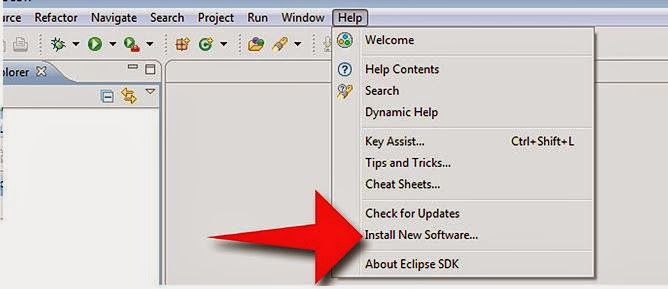
  • Open Eclipse and select Help and Install New Software


Now select all the listed plug-ins using Select All button and click Next button which will guide you ahead to install Android Development Tools and other required plugins.

5 - Create Android Virtual Device

Well last to test your Android applications you will need a virtual Android device. So before we start writing our code, let us create an Android virtual device. Launch Android AVD Manager using Eclipse menu options: Window > AVD Manager> which will launch Android AVD Manager. Use New button to create a new Android Virtual Device and enter the following information, before clicking Create AVD button.
If your AVD is created successfully it means your environment is ready for Android application development. Better you re-start your machine and once you are done with this last step, you are ready to proceed for your first Android example but before that we will see few more important concepts related to Android Application Development, in our next tutorial named: What is Android Architecture?

This tutorial has been written with an aim to teach you Set up an Android Development Environment. #Some of Stats/Info mentioned in this post are taken from Wikipedia. They are subjected to changes as android technology is growing very fast.
.

Thursday, January 30, 2014

Android Application Programming Overview

By Admin   Posted at  1:52 PM   Programming Languages 2 comments

Hello Guys,
Welcome to my first tutorial on android application programming. First lets see a quick overview of android itself, then we'll move on to necessary environmental setup. So without wasting our time lets dig in it, here we go:

What is Android?


Android is an operating system based on the Linux kernel, and designed primarily for touchscreen mobile devices such as smartphones and tablet computers. Initially developed by Android, Inc., which Google backed financially and later bought in 2005, Android was unveiled in 2007 along with the founding of the Open Handset Alliance: a consortium of hardware, software, and telecommunication companies devoted to advancing open standards for mobile devices. The first publicly available smartphone running Android, the HTC Dream, was released on October 22, 2008.

It is world's most popular mobile OS:
Android powers more than a billion phones and tablets around the world. It’s customizable, yet easy to use, and since it's made by Google, it works seamlessly with all your favorite Google apps.

Open Source:
Android offers a unified approach to application development for mobile devices which means developers need only develop for Android, and their applications should be able to run on different devices powered by Android. The source code for Android is available under free and open source software licenses. Google publishes most of the code under the Apache License version 2.0 and the rest, Linux kernel changes, under the GNU General Public License version 2.

Features of Android:

Following is a list of features in the Android operating system:


Android Applications:

Android has a growing selection of third party applications, which can be acquired by users either through an app store such as Google Play or theAmazon Appstore, or by downloading and installing
the application's APK file from a third-party site.
The Play Store application allows users to browse, download and update apps published by Google and third-party developers, and is pre-installed on devices that comply with Google's compatibility requirements. The app filters the list of available applications to those that are compatible with the user's device, and developers may restrict their applications to particular carriers or countries for business reasons. Purchases of unwanted applications can be refunded within 15 minutes of the time of download, and some carriers offer direct carrier billing for Google Play application purchases, where the cost of the application is added to the user's monthly bill. As of July 2013, there are more than one million applications available for Android in the Play Store.

So guys this is my very first post on Android Application Programming and Overview of Android OS.
This tutorial has been written with an aim to teach you how to develop and package Android application. I'll start from environment setup for Android application programming and we will also see How to configure Eclips IDE for the same.
#All Stats mentioned in this post are taken from Wikipedia. They are subjected to changes as android technology is growing very fast.

Back to top ↑
Connect with Us

WhatsApp Share

What they says

one of the best mobile technology blog

Licencing

© 2013 Andropedia : The Android Fulcrum ™. Distributed By Blogger Themes | WP Mythemeshop Converted by Bloggertheme9
Blogger templates. Proudly Powered by Blogger.